Have you ever been right in the middle of a crucial Google Maps navigation—or worse, a much-needed playlist during a commute—only to see that dreaded “Data Limit Reached” notification pop up like a digital slap in the face? It is honestly so frustrating. We’ve all been there, staring at our phones and wondering why our monthly plan seems to vanish into thin air before the second week even hits. Most people will tell you that you just need a more expensive unlimited plan, but I think that’s a total scam. Learning how to save mobile data shouldn’t require a degree in computer science or a massive hike in your monthly budget; it should be about smarter habits, not just more money.
I’m not here to give you a list of tech jargon that makes your head spin. Instead, I want to share the exact, tiny tweaks I’ve implemented in my own life to keep my connection steady without the constant anxiety. We’re going to walk through some practical, low-effort shifts—from adjusting those sneaky background app settings to mastering your streaming quality—that will actually work. My goal is to help you reclaim your digital freedom and stop stressing over every single megabyte.
Table of Contents
Quiet the Noise by How to Limit Background Data Usage
Ever feel like your data plan is just… leaking? You haven’t even opened your favorite apps, yet your usage meter is climbing like crazy. That’s usually because of those sneaky little background processes. Even when your phone is sitting untouched on your desk, apps are constantly whispering to servers, updating your location, or refreshing your social feeds. It’s exhausting for your battery and even worse for your data cap. To fix this, you really need to stop apps from using data when you aren’t actively using them.
The good news is that you don’t need to be a tech genius to reclaim that control. Most of us can significantly reduce cellular data consumption just by diving into our phone’s settings and toggling off “Background App Refresh.” If you’re traveling or on a tight budget this month, I highly recommend leaning on your phone’s built-in low data mode settings. It’s like a digital “do not disturb” sign for your internet connection—it keeps the essentials running while silencing all that unnecessary background chatter.
Finding Calm With Simple Low Data Mode Settings
If you’re anything like me, your phone is basically an extra limb at this point. But between endless scrolling and constant notifications, it can feel like your data plan is just… evaporating. This is where those built-in low data mode settings become your absolute best friend. Think of it as a “Do Not Disturb” mode, but specifically for your cellular connection. Instead of manually policing every single app, you can flip a single switch in your settings to tell your phone, “Hey, let’s be a bit more mindful today.”
When you toggle this on, your device automatically starts making smarter choices, like pausing automatic updates and lowering video quality. It’s one of those small, practical shifts that helps you optimize mobile internet usage without having to become a tech genius overnight. I love it because it removes the mental clutter of constantly checking my usage meter. It’s less about restriction and more about creating a little breathing room for your budget, allowing you to navigate your day with a bit more ease and a lot less digital stress.
5 Tiny Tweaks to Keep Your Data (and Your Budget) in Check
- Be picky about your Wi-Fi: I know it’s tempting to stay connected everywhere, but try to save those big downloads—like software updates or heavy Netflix episodes—for when you’re actually home on your home network. It’s a total game-changer for your monthly bill!
- Tame your social media appetite: Apps like Instagram and TikTok are absolute data hogs because they preload videos constantly. Go into your app settings and turn off “Autoplay” or “Data Saver” mode. It stops the endless scrolling from eating through your allowance before you even realize it.
- Audit your photo uploads: If you’re a fellow photo enthusiast, you know how much space those high-res shots take up. Set your Google Photos or iCloud settings to only back up over Wi-Fi. This way, you can snap all the memories you want without worrying about a surprise data spike.
- Watch out for “Map Madness”: Using GPS is a lifesaver, but streaming live map data while driving can be surprisingly thirsty. A quick pro-tip from my own travels: download your local area maps for offline use. It’s a small shift that keeps you on track without the data drain.
- Clean up your browser habits: If you find yourself constantly refreshing news sites or blogs, try using a browser that has a built-in data-saving feature (like Chrome’s Lite mode or similar settings). It compresses the pages a bit, making your browsing feel snappy and much more efficient.
Quick Wins for Your Data Budget
Take a moment to audit your background data; those sneaky apps running in the shadows are often the biggest culprits draining your plan!
Don’t be afraid to lean on Low Data Mode—it’s like a little digital deep breath that keeps your essentials running without the extra cost.
Small, intentional tweaks to your settings can lead to massive savings, giving you more peace of mind (and more data for the things you actually love).
A Little Digital Minimalism
“Think of your mobile data like your energy levels—if you let every little background app and notification drain you constantly, you’ll have nothing left for the things that actually matter. Saving data isn’t just about the bill; it’s about reclaiming a little bit of digital headspace.”
Emily Carter
Small Changes, Big Freedom
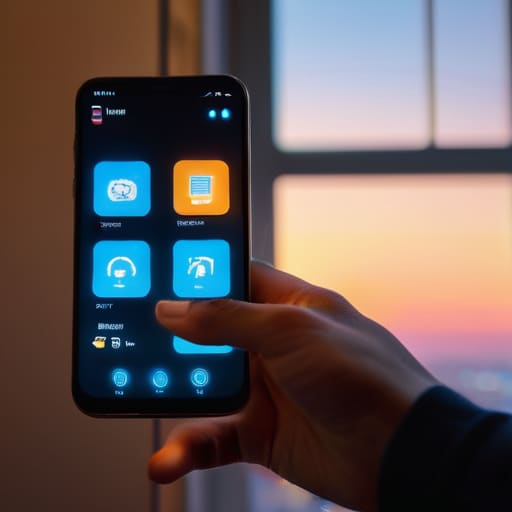
At the end of the day, saving mobile data isn’t just about watching those little megabyte numbers drop; it’s about reclaiming a sense of control over your digital life. We’ve looked at how silencing those pesky background apps and leaning into your phone’s built-in low data modes can make a massive difference. By making these tiny, intentional tweaks to your settings, you’re essentially cutting through the digital clutter. Whether you’re auditing your app permissions or being a bit more mindful of high-def streaming, you are effectively building a buffer between you and those unexpected data overage charges that always seem to pop up at the worst times.
I know that sometimes these tech adjustments can feel like just another thing on your never-ending to-do list, but I promise you, they are so worth the effort. Think of it as a little act of self-care for your wallet and your peace of mind. When you aren’t constantly worrying about whether you’re about to hit your limit, you can actually focus on the moment instead of your signal strength. So, take a deep breath, dive into those settings, and remember that progress is found in the small shifts. You’ve got this, and I’m rooting for you every step of the way!
Frequently Asked Questions
Will turning on low data mode affect how quickly my apps load or how I receive notifications?
That’s such a great question, and honestly, it’s one I used to worry about myself! The short answer is: yes, you might notice a slight lag. Since Low Data Mode tells your phone to prioritize essential tasks, some apps might take an extra second to load, and notifications might arrive with a tiny delay. It’s not a huge deal, but think of it as your phone taking a deep breath to save energy!
Is it actually worth downloading my favorite Spotify playlists or Netflix shows over Wi-Fi to save data later?
Oh, absolutely! Honestly, if you’re looking to reclaim your data and your sanity, this is a total game-changer. I always treat my Wi-Fi like a golden opportunity to “stockpile” my entertainment. Downloading your go-to Spotify playlists or that Netflix series you’ve been dying to binge means you can enjoy them later without that nagging anxiety about your data cap. It’s one of those tiny, strategic shifts that makes life so much smoother!
How can I tell which specific apps are the biggest "data hogs" hiding in my phone settings?
Ever feel like your data is just… vanishing into thin air? I’ve been there! To find the culprits, head into your phone’s settings and look for “Cellular” or “Mobile Data.” There, you’ll see a list of every single app and exactly how much it’s eaten up. It’s honestly a bit eye-opening—I was shocked at how much my social media apps were snacking on my data! Once you see the numbers, the solution becomes so much clearer.